
How to Save a LinkedIn Post as an Image
LinkedIn has no “save as image” option. With the free LinkFeed Pro extension, right-click any post and choose “Save post as an image”: you get a sharp PNG of the whole post, even when it is longer than your screen, without the comments. No account, no subscription.

Free · No account · No subscription


In 30 seconds
- 1Install LinkFeed Pro
- 2Right-click any post on LinkedIn.
- 3Choose “Save post as an image”. The PNG is in your Downloads.
Why a plain screenshot is not enough
LinkedIn lets you save a post, but only as a bookmark inside LinkedIn. There is no “download” or “save as image” option. So most people take a screenshot, and quickly run into the same problems:
- Long posts don't fit on the screen. You end up with two or three screenshots to stitch together.
- The text is cut off. If you forget to click “…more”, the image stops mid-sentence.
- You capture too much. Sidebars, the top bar, the next post and the comments all end up in the frame, so you have to crop.
- The file has no useful name. A week later, “Screenshot 2026-09-29 at 09.41.12.png” tells you nothing about whose post it was.
Online “LinkedIn post screenshot” generators take a different approach: you paste the text and they draw a card that looks like a LinkedIn post. That is useful for mocking up your own posts, but it is not the post you saw. The photos, the document, the exact layout and the reaction counts are missing.
How to save a LinkedIn post as an image in one click
LinkFeed Pro adds one item to your browser's right-click menu on LinkedIn.
- Install LinkFeed Pro for Chrome, Edge, Firefox or Safari (Mac).
- Right-click anywhere on a post: on its text, its photo or the author's name.
- Choose “Save post as an image”.
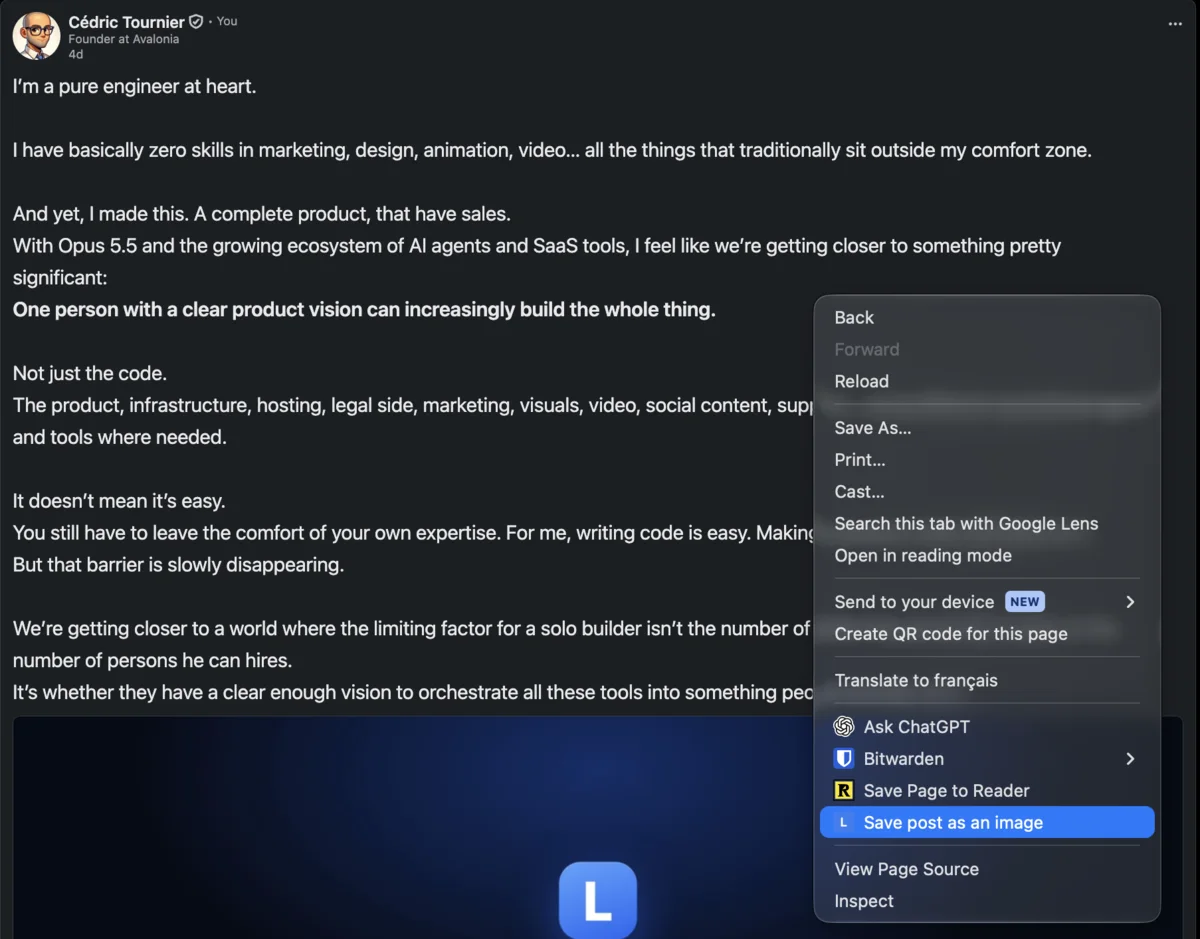
A few seconds later, a message confirms that the image is saved in your Downloads folder. On Safari, click Download PNG in the message that appears in the bottom-right corner.
The file is named after the author and the moment you saved it, for example Maya_Chen_2026-09-29_09-41-12.png. Your folder stays sorted by person without renaming anything.
What the image contains
The image is a pixel-accurate capture of the post exactly as LinkedIn displays it:
- the author's name, photo and headline;
- the full text of the post;
- photos, the visible page of a document or carousel, and the current frame of a video;
- the reaction, comment and repost counts, with the action bar.
The comments are left out: the image stops right above them, so you get the post and nothing else.
Long posts are handled automatically. If the post is taller than your window, LinkFeed scrolls through it, captures it piece by piece and assembles a single seamless image. Your scroll position is restored afterwards. For a very long post this takes a few seconds, so stay on the tab until the confirmation appears.
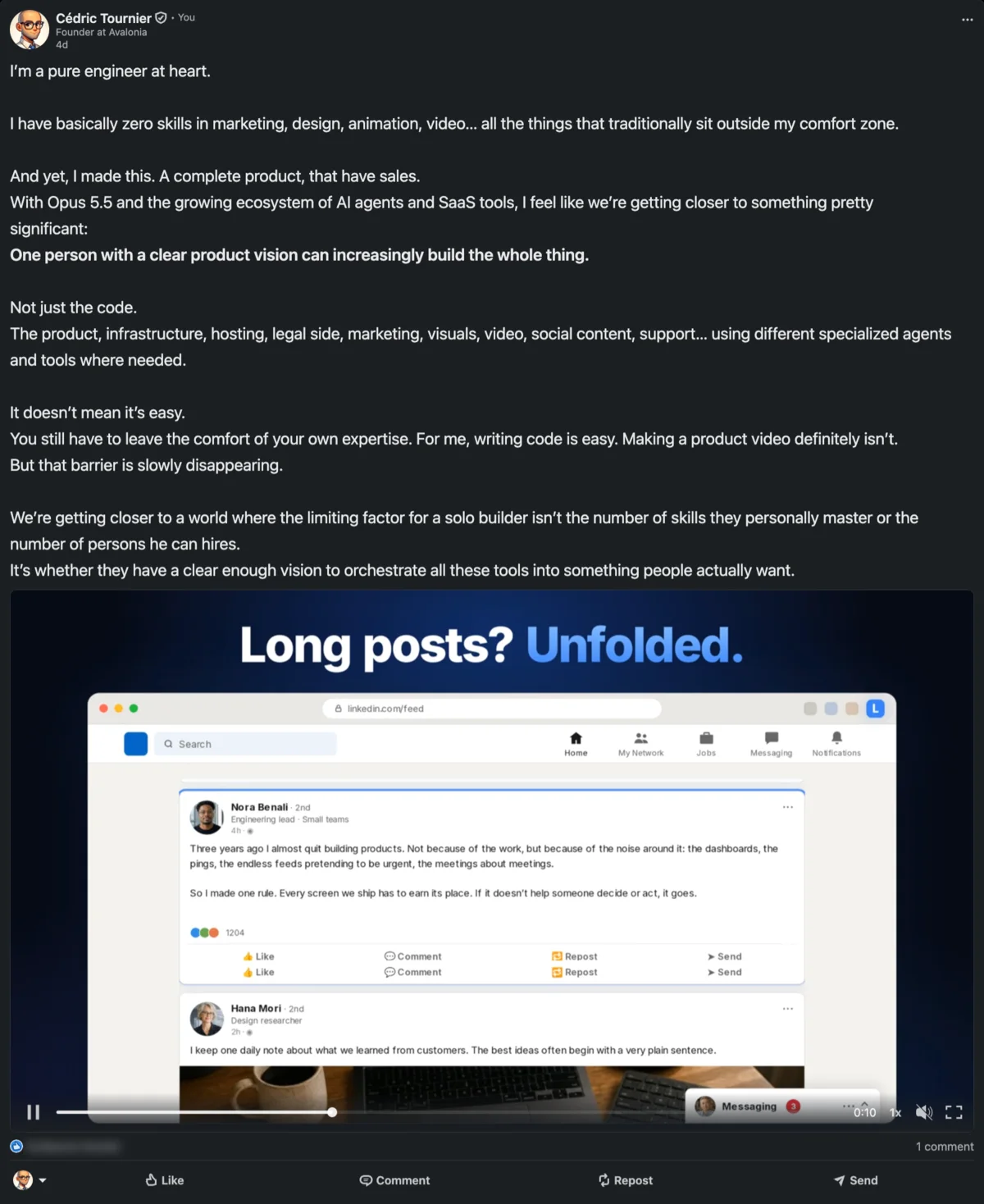
The image is sharp. It is captured at your screen's real pixel density, so on a Retina or high-resolution display the PNG is twice as detailed as a standard screenshot. The text stays crisp in a slide deck or a document.
Five ways to use a saved post
Build a swipe file. Creators, ghostwriters and marketers keep the posts that made them stop scrolling: a strong opening line, a clear structure, a format worth trying. Because each file carries the author's name, a folder of saved posts becomes a searchable library.
Keep social proof. When a client or colleague praises your work in a post, save it the same day. With their permission, it becomes a testimonial for your website, a proposal or a sales deck, with the real LinkedIn layout that makes it credible.
Quote a post in a presentation or a newsletter. A real image of the post, with the author's name and photo, carries more weight than a copied paragraph, and it keeps the credit visible.
Archive before it disappears. Posts get edited, deleted, or buried in the feed for good. An image keeps a copy of what was said, and the file name records when you saved it.
Share with people who are not on LinkedIn. Drop the PNG in Slack, Teams, an email or a group chat. Everyone sees the post without needing an account or a link that may stop working.
Every method compared
| Method | Whole post in one image | Real post with its media | No cropping | Effort |
|---|---|---|---|---|
| Screenshot shortcut (Win+Shift+S, Cmd+Shift+4) | Only if it fits on screen | Yes | No | Select, crop, rename |
| Scrolling-screenshot app | Yes | Yes | No, sidebars included | Install an app, crop |
| Print to PDF | Yes, with the comments | Partly | No | A PDF, not an image |
| Online post-screenshot generator | Yes | No, the card is redrawn | Yes | Copy and paste the text |
| LinkedIn “Save” | No image | Stays inside LinkedIn | — | Lost if the post is deleted |
| LinkFeed Pro | Yes, stitched automatically | Yes | Yes, comments left out | Right-click, one click |
Tips for a perfect capture
- Open the full text first. The image shows the post as it is on screen. If LinkedIn cuts it with “…more”, click it before saving. With LinkFeed's Auto-Expand Posts setting, every post is already open.
- Let the images load. LinkFeed waits for the visible photos, but on a slow connection it is worth a second's pause before you right-click.
- Choose the width of the image. The image has the width of the post on screen. A wider feed gives a wider image with shorter lines.
- Don't scroll or switch tabs during the capture. The browser can only photograph the visible tab. If the page moves, LinkFeed stops rather than produce a broken image: simply try again.
Private by design
The capture happens entirely in your browser. LinkFeed photographs the visible tab, assembles the image on your computer and hands it to your browser's download manager. The image is never uploaded, to LinkFeed or anywhere else, and LinkedIn is not notified.
The feature uses three browser permissions, all limited to what it does: the right-click menu item, a capture of the active LinkedIn tab when you choose the item, and saving the finished PNG to your Downloads.
FAQ
Is saving a LinkedIn post as an image really free? Yes. Saving posts as images is completely free: no account, no license key, no subscription. It works as soon as the extension is installed, even if you turn off all the feed changes.
Does the author know I saved their post? No. The image is created in your browser from what is already on your screen. Nothing is sent to LinkedIn or to the author.
Are the comments included in the image? No. The image stops just above the comments, so you get the post itself: author, text, media and reaction counts.
Can I save a post that is longer than my screen? Yes. LinkFeed scrolls through the post, captures each part and assembles one seamless PNG, up to posts several screens tall.
Does it work on the LinkedIn mobile app? No. LinkFeed is a desktop browser extension for Chrome, Edge, Firefox and Safari on Mac. On a phone, use the phone's own screenshot, ideally its scrolling or full-page mode.
What format and quality is the image? A PNG, captured at your screen's pixel density. On Retina and other high-resolution displays, it is twice as sharp as a standard screenshot.
Where are the images saved? In your browser's default download folder. On Safari, click Download PNG in the confirmation message.
Can I repost someone else's post as an image? Saving a post for your own reference is one thing, republishing it is another. Credit the author, and ask them before using their post publicly, for example as a testimonial.
No account. No card. 7 days with every feature.
Try LinkFeed on your own timeline.
Keep the accounts you follow. Hide everything else.
Related guides